> ## Documentation Index
> Fetch the complete documentation index at: https://sdocs.netransit.net/llms.txt
> Use this file to discover all available pages before exploring further.
> This is guidance for everything shifts.
# NET Shift Guidelines, Policies, and Operations
### Quota and Announcing
Shifts are hosted \*\*AT LEAST 3 hours \*\*in advance and \*\*AT LEAST 6 hours \*\**after* the end of a previous run.
\*\*PLEASE \*\*ensure there is \*\*AT LEAST \*\*1 run per 1 week.
Use the command /shift with the New England Transit bot to announce a shift.
*It is fine to use these commands in any channel as they are only visible to you. (The announcement which will stay consistent in the shifts channel would be visible to everyone.)*
Learn how and what to use to announce shifts specifically. This article will be the more generic cover of this.
There are 3 commands for shifts
* `/shift`
* `/cancelshift`
* `/shiftstop`
*Use these commands to announce shifts, cancel them, and stop them after their done.*
### How to start a shift server
You may know that you use netransit.net/shift or /joinshift to join shifts. These both essentially makes you join the MBTA Shift hub. After you join the hub, it can redirect you to the reserved server that the game is being hosted in.
Eithier through the link or command in the hub, use those to join the shift hub. You will know once you see this screen.
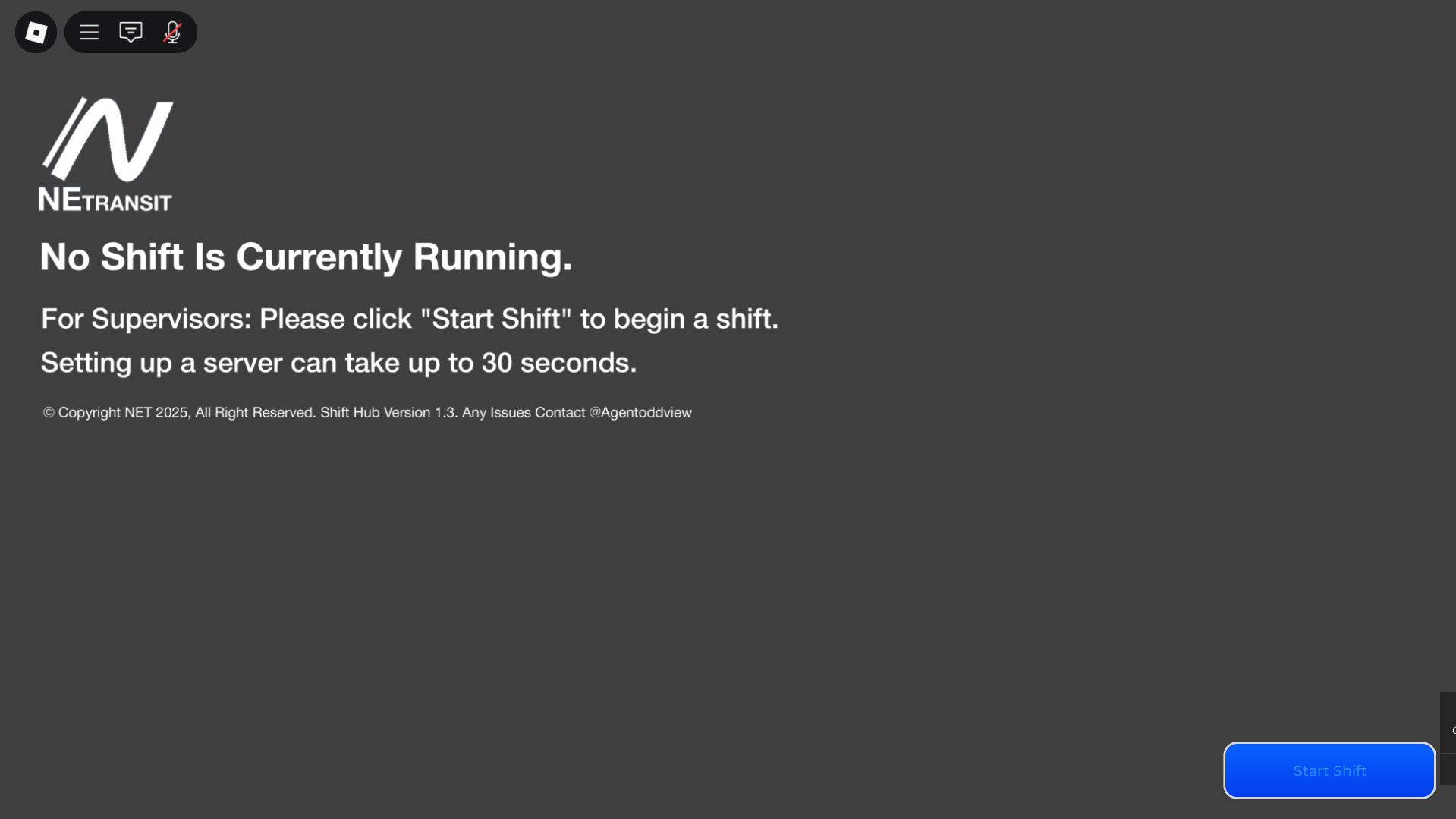 You may notice the bright blue button that reads "Start Shift". This only appears for supervisors, and once clicked loads a new server. This screen will show to normal players if no shift is started, just without the button.
Click the blue start shift button. It may take up to 30 seconds to load. You will know it worked once you get teleported into the shift server. After you are in-game, you are all set up.\
\
Now every person which joins will be automatically directed to the shift server.
Feel free to give out routes, directions, and do other realistic operations during the shift.
You can also use Btools to build stuctures or other things in your shift. Please make sure it is realistic! To learn more about Btools, read here.
Click here to learn about the right and wrongs and how to use Btools with Adonis.
Once finished with roleplay, use `:shutdown` to shutdown the server. This will automatically make players stop redirecting to the server as well, and they will instead stay at the hub with the error. On the Discord, use `/shiftstop` to announce the shift has stopped.
### Operations During Shift
Give out routes EVENLY and **I highly encourage you** to give out shuttle routes, Free-drive routes, or do a construction event using btools. (Assigning routes is **not** required)
Use the `:track` command to have the admin show you where everyone is at all times. Supervise the run accordingly.
During the run, make sure all operators are abiding by their route and all road rules. **Follow guidelines accordingly on warnings/kicks/bans.**
Upon the end of a run, use `:n` 5-10 minutes before a run is ending to let operators know to head back to the depot when their route is over. (a reminder to have all operators use the OUT OF SERVICE code \[WRTA: `1000`, MBTA=`4321`] when they are not actively doing any route).
You may notice the bright blue button that reads "Start Shift". This only appears for supervisors, and once clicked loads a new server. This screen will show to normal players if no shift is started, just without the button.
Click the blue start shift button. It may take up to 30 seconds to load. You will know it worked once you get teleported into the shift server. After you are in-game, you are all set up.\
\
Now every person which joins will be automatically directed to the shift server.
Feel free to give out routes, directions, and do other realistic operations during the shift.
You can also use Btools to build stuctures or other things in your shift. Please make sure it is realistic! To learn more about Btools, read here.
Click here to learn about the right and wrongs and how to use Btools with Adonis.
Once finished with roleplay, use `:shutdown` to shutdown the server. This will automatically make players stop redirecting to the server as well, and they will instead stay at the hub with the error. On the Discord, use `/shiftstop` to announce the shift has stopped.
### Operations During Shift
Give out routes EVENLY and **I highly encourage you** to give out shuttle routes, Free-drive routes, or do a construction event using btools. (Assigning routes is **not** required)
Use the `:track` command to have the admin show you where everyone is at all times. Supervise the run accordingly.
During the run, make sure all operators are abiding by their route and all road rules. **Follow guidelines accordingly on warnings/kicks/bans.**
Upon the end of a run, use `:n` 5-10 minutes before a run is ending to let operators know to head back to the depot when their route is over. (a reminder to have all operators use the OUT OF SERVICE code \[WRTA: `1000`, MBTA=`4321`] when they are not actively doing any route).